The Missing Link: How to Track Your Google Business Profile Inside Google Analytics
If you run a local business in the UK: whether it’s a hair salon in Manchester, a dental practice in Bristol, or a café in the heart of London: you know the frustration of "the gap."
On one hand, you have your Google Business Profile (GBP), which tells you how many people found you on Maps. On the other, you have Google Analytics 4 (GA4), which tells you what people do once they land on your website. For years, these two have felt like distant cousins who rarely speak. You could see that someone clicked your "Website" button on Maps, but tracking exactly what they did next usually involved messy tracking codes and "best guess" maths.
That changed on the 5th of June 2026.
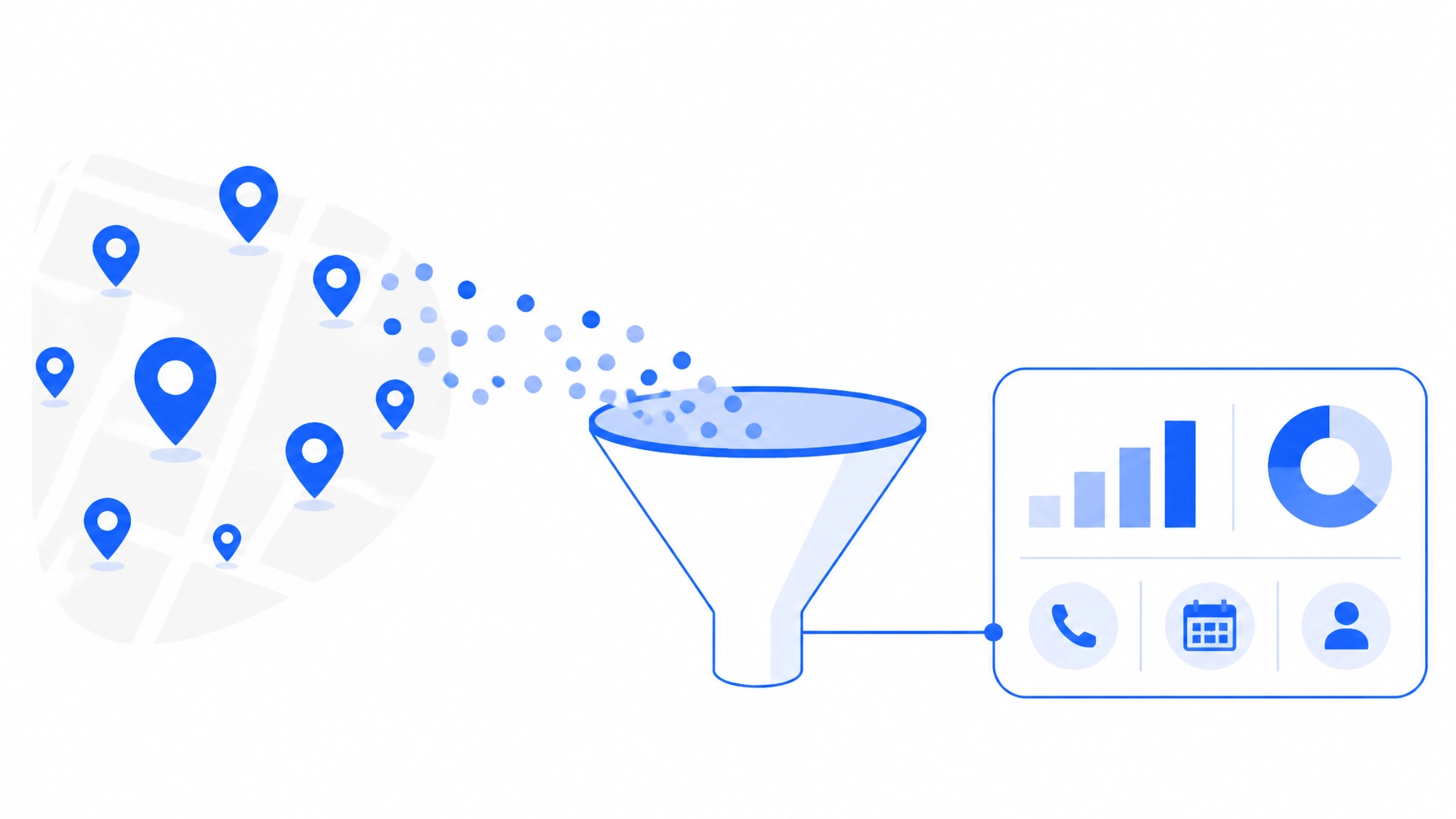
Google has finally started rolling out a native integration that links your Google Business Profile data directly into your Google Analytics dashboard. No more manual tagging, no more jumping between tabs, and no more guessing.
Here is everything you need to know about this update and how to get it working for your business.
Why This Matters for Local Businesses
For most local service providers, the journey doesn't start on your homepage. It starts on Google Maps. A customer searches for "emergency plumber near me," sees your profile, checks your reviews (hopefully you've been using reviews automation to keep those looking sharp), and then decides to either call you or visit your site.
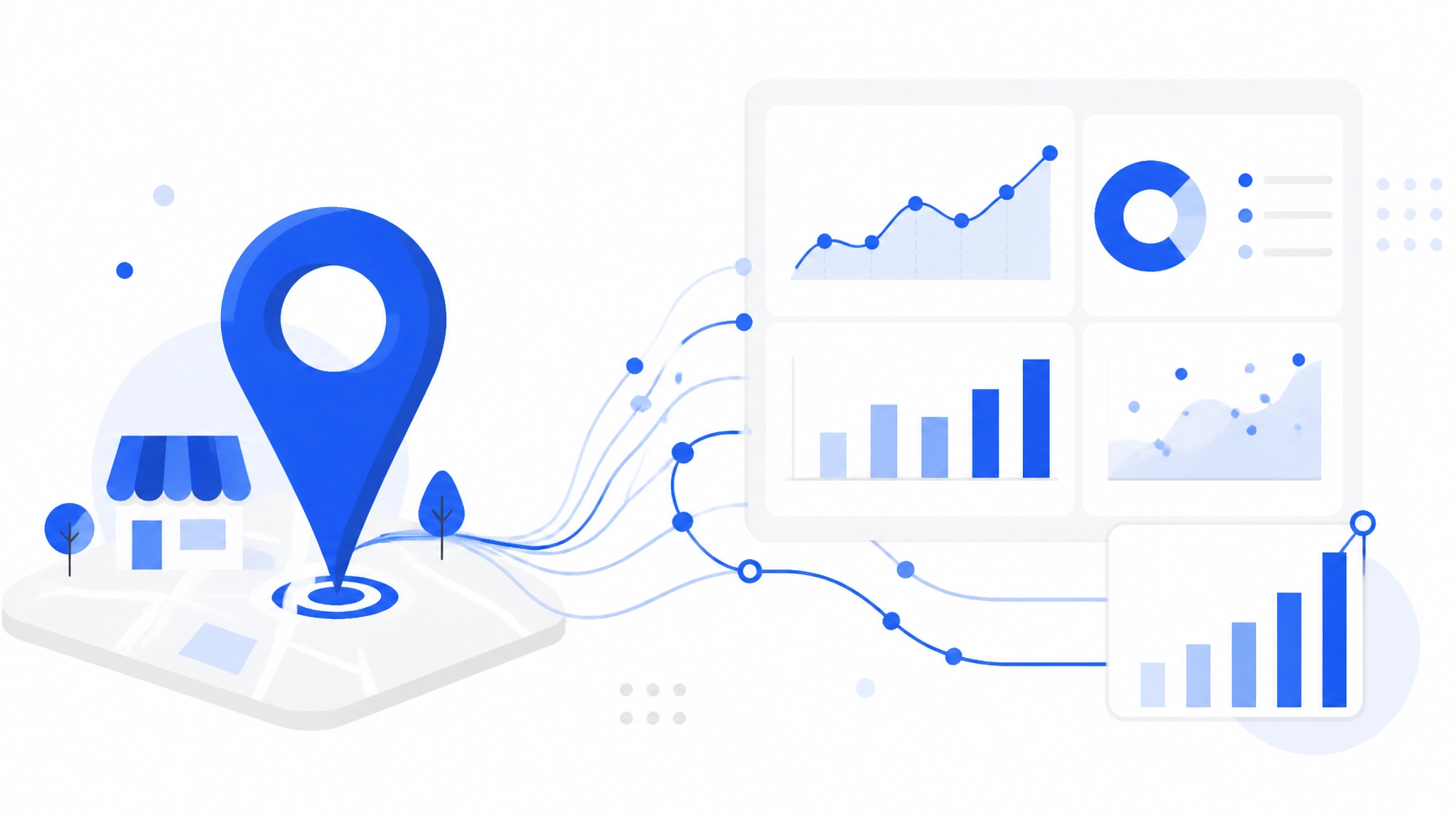
Until now, seeing those "Calls" and "Direction Requests" alongside your website traffic was a bit of a headache. By bringing this data into GA4, you can finally see the "Path to Purchase" in one place. You can see if a spike in Maps views actually leads to more bookings, or if your latest round of review requests is driving more phone calls.
It’s about moving away from "vanity metrics" (like how many people saw your photo) and focusing on "action metrics" (how many people actually tried to contact you).
How to Link Your Profile (The 5-Minute Setup)
Google has made this surprisingly simple. You don't need to be a developer or an SEO wizard to do this. You just need to be an "Editor" or "Administrator" on your GA4 account and an "Owner" of your Google Business Profile.
- Open GA4 Admin: Log into your Google Analytics account and click the gear icon (Admin) in the bottom left-hand corner.
- Find Product Links: Scroll down the middle column until you see a section called "Product Links."
- Select Google Business Profile Links: This is the new option that started appearing this month. If you don't see it yet, don't panic: Google is rolling this out in waves, so check back in a few days.
- Create the Link: Click the "Link" button. GA4 will ask you to choose the Google account that manages your business. Once you select it, a list of your locations will appear.
- Choose Your Locations: Tick the box for your business (or all your branches if you have more than one) and hit "Confirm."
That’s it. Data won't appear instantly: it usually takes about 24 to 48 hours for the pipes to start flowing: but once it's connected, you’re set.
What New Data Will You See?
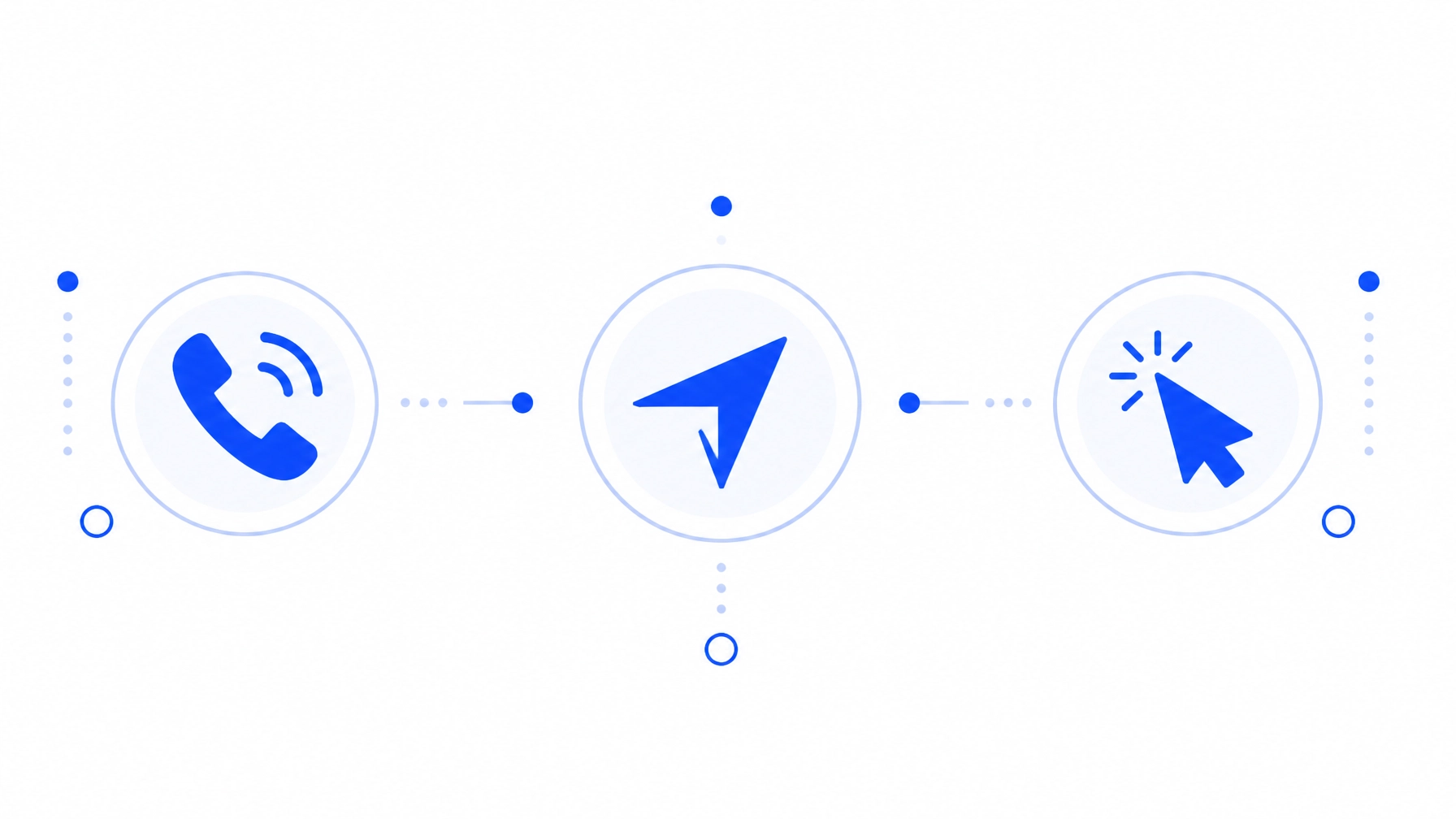
Once the integration is live, a new "Google Business Profile" section will appear within your GA4 reports. You’ll be able to track several key actions that previously lived only in the "Insights" tab of your business profile:
- Calls: How many times people tapped the "Call" button on your profile.
- Directions: How many people asked Google for a route to your shop or office.
- Website Clicks: The number of times people clicked through to your site from the "Website" button.
- Messages: If you have messaging enabled, you can see the volume of customer enquiries coming through.
- Bookings: For businesses using integrated booking tools, you’ll see how many appointments were secured directly from the search result.
The beauty of having this in GA4 is that you can see trends over time. For example, you might notice that while your website traffic stayed flat last month, your "Direction Requests" doubled. That’s a huge win that you might have missed if you were only looking at your website stats.
A Few Important "Gotchas"
As with any new Google update, there are a few limitations to keep in mind. Google likes to keep things simple, but sometimes that means we lose a bit of the granular detail.
Firstly, the data is aggregated. If you have three different dental clinics and you link them all to one GA4 property, Google will show you the total number of calls and directions for all three combined. You won't be able to easily see which specific branch is the "star performer" within the GA4 interface itself. For that level of detail, you'll still want to check your individual profiles or use a dedicated local rank tracking tool.
Secondly, there is a six-month window. GA4 will only show you the last six months of your Google Business Profile data. It doesn't "backfill" years of history. If you want to compare this summer’s performance to three years ago, you’ll still need to rely on your old exports or third-party reporting tools.
Lastly, this data is "read-only" in GA4 for now. You can't currently use these GBP metrics in the "Explorations" tool to build complex custom reports, though we expect Google to add that functionality later in 2026.
How This Fits Into Your Wider Strategy
Tracking your data is only half the battle. Knowing that 50 people clicked for directions is great, but the real question is: why did they choose you over the competitor down the road?
Usually, the answer is social proof. When someone finds you on Google Maps, the very first thing they look at is your star rating and how recently you’ve responded to reviews. This new GA4 integration makes it easier to see the "flywheel effect" in action.
For instance, when you use a platform like YourReviews to automatically collect feedback via SMS or WhatsApp, your profile becomes more active. More reviews lead to higher visibility on Maps. Higher visibility leads to more "Direction Requests" and "Calls": and now, thanks to this update, you can see those numbers climb directly inside your Google Analytics.
Making the Most of the Update
To really capitalise on this, we recommend a three-step approach for the rest of 2026:
- Audit Your Profile: Before linking, make sure your GBP "Services" and "Products" sections are fully filled out. Google is using AI to match search queries to these sections more than ever before.
- Link GA4 Now: Don't wait. Even if you don't plan on looking at the data today, get the link established so Google starts collecting that six-month history for you.
- Check the "Path to Website": Use the new GA4 data to see if people who visit your site from GBP stay longer than people who find you through general organic search. Often, "Maps visitors" are much higher intent: they are ready to buy, book, or visit now.
The wall between Google Maps and Google Analytics is finally coming down. For local business owners who are short on time but big on growth, this is one of the most practical updates we’ve seen in years. It’s time to stop guessing and start seeing exactly how your local presence is driving your bottom line.